> ## Documentation Index
> Fetch the complete documentation index at: https://doc.howen.ink/llms.txt
> Use this file to discover all available pages before exploring further.
# 日本語文章解析
> Read Japanese sentences word by word. Type or paste Japanese to see word segmentation, furigana, parts of speech, meanings, and a full translation.
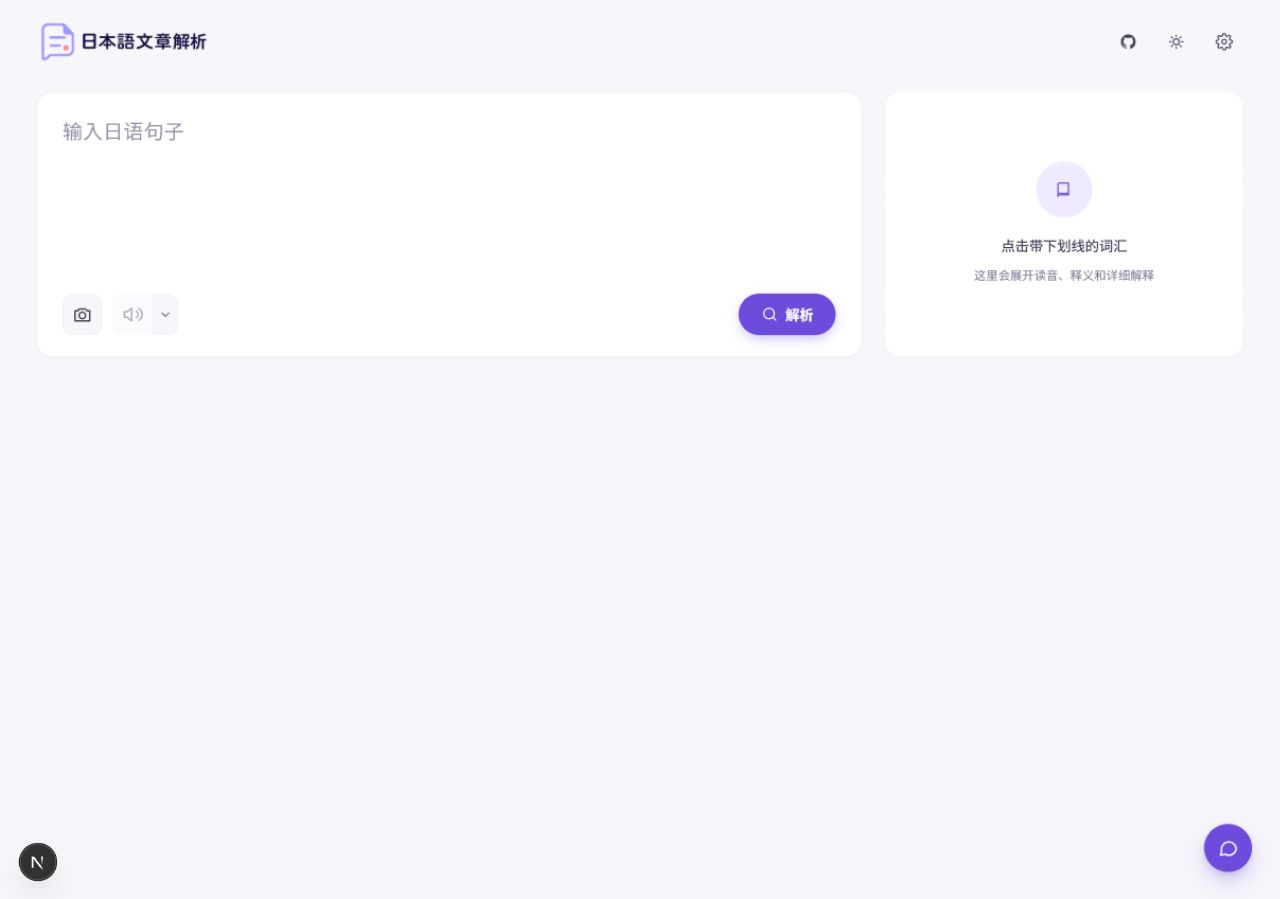
Japanese Text Analyzer (日本語文章解析) is an AI-powered web app for breaking down Japanese sentences. You type or paste Japanese text, and it labels each word with its kana reading, romaji, and part of speech. A full translation appears below. Click any word to see its meaning in that sentence, its usage, its conjugation, and an example sentence.
Want to try it first? Open the [live demo](https://nihongodemo.howen.ink/) and start analyzing without deploying anything.
## Features at a glance
### Read sentences
Label each word with furigana, romaji, and part of speech, and get a full translation automatically.
Click a word to see its meaning in the sentence, dictionary form, conjugation, and an example.
Get grammar patterns and set expressions explained as a whole. Merge a wrongly split word in one click.
### Work more smoothly
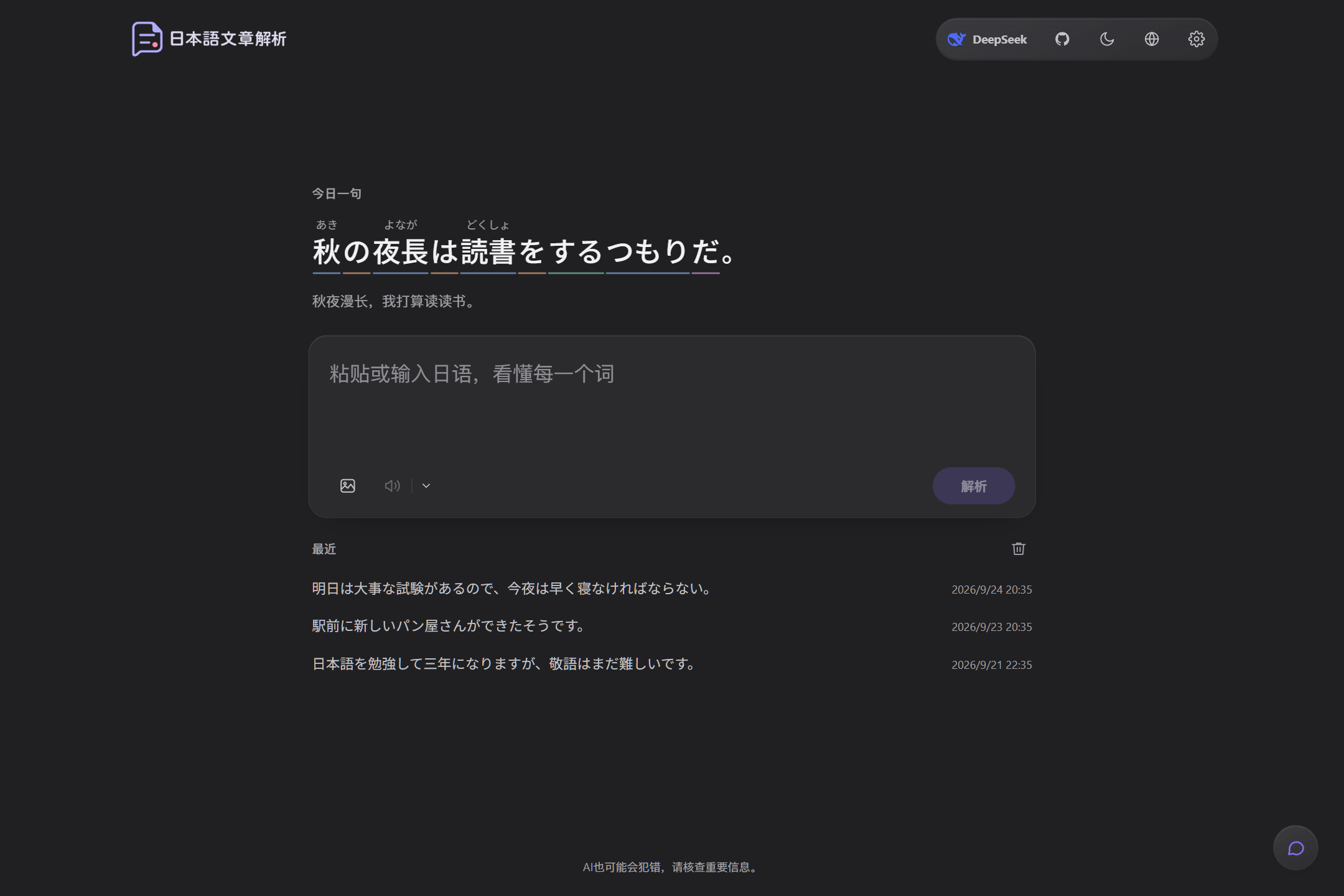
The home page shows a new sentence each day, updated on Japan time. Your recent analyses are saved locally in your browser.
Upload or paste a screenshot to extract the Japanese text in it.
Listen with Edge TTS or Gemini TTS, with adjustable speed and voice.
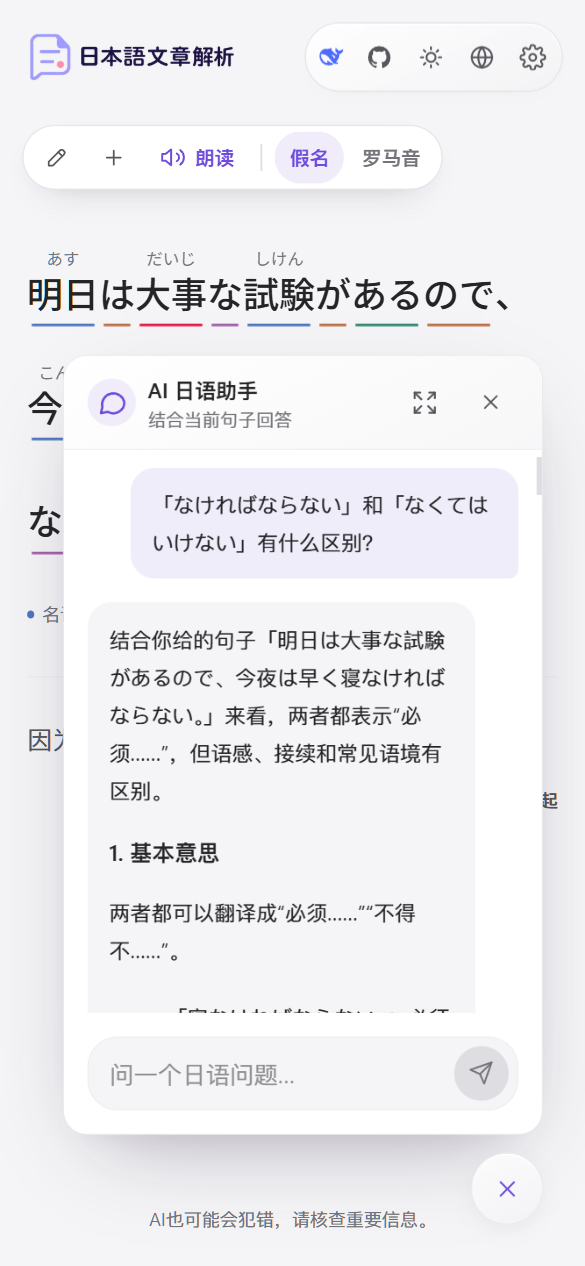
Ask follow-up questions about grammar, vocabulary, and learning, in the context of the current sentence.
### Interface
* Supports 简体中文, 繁體中文, English, and 한국어. The interface, translations, and definitions switch together.
* Offers three themes: light, dark, and system. Works on desktop and mobile.
* Splits long texts into chunks automatically. When you paste from a web page or Markdown, formatting and links are removed automatically.
 ## Models
| Purpose | Default | Options |
| ------------------------------------------------ | ------------------------------- | --------------------------------------------------------- |
| Analysis, translation, definitions, AI assistant | DeepSeek `deepseek-flash` | Gemini `gemini-flash-latest` / `gemini-flash-lite-latest` |
| Image recognition | Same as the selected text model | — |
| Text-to-speech | Edge TTS | Gemini TTS (requires a Gemini API key) |
The API key configured on the server is shared by all visitors. Users can also enter their own key in **Settings**. That key stays in their own browser, and the app server forwards it to the model provider with each request. For details, see [Keys and privacy](/en/privacy).
## Tech stack
* Next.js 15 (App Router) and React 19
* Tailwind CSS
* DeepSeek and Gemini through OpenAI-compatible APIs
* License: [AGPL-3.0-only](/en/license)
## Next steps
Install dependencies locally and run the app in minutes.
Deploy to Vercel, or run it on your own server with Docker.
Hand deployment to an AI coding assistant such as Claude Code or Codex with a single sentence.
Learn about every environment variable, the models, and the access password.
## Models
| Purpose | Default | Options |
| ------------------------------------------------ | ------------------------------- | --------------------------------------------------------- |
| Analysis, translation, definitions, AI assistant | DeepSeek `deepseek-flash` | Gemini `gemini-flash-latest` / `gemini-flash-lite-latest` |
| Image recognition | Same as the selected text model | — |
| Text-to-speech | Edge TTS | Gemini TTS (requires a Gemini API key) |
The API key configured on the server is shared by all visitors. Users can also enter their own key in **Settings**. That key stays in their own browser, and the app server forwards it to the model provider with each request. For details, see [Keys and privacy](/en/privacy).
## Tech stack
* Next.js 15 (App Router) and React 19
* Tailwind CSS
* DeepSeek and Gemini through OpenAI-compatible APIs
* License: [AGPL-3.0-only](/en/license)
## Next steps
Install dependencies locally and run the app in minutes.
Deploy to Vercel, or run it on your own server with Docker.
Hand deployment to an AI coding assistant such as Claude Code or Codex with a single sentence.
Learn about every environment variable, the models, and the access password.