Model and API
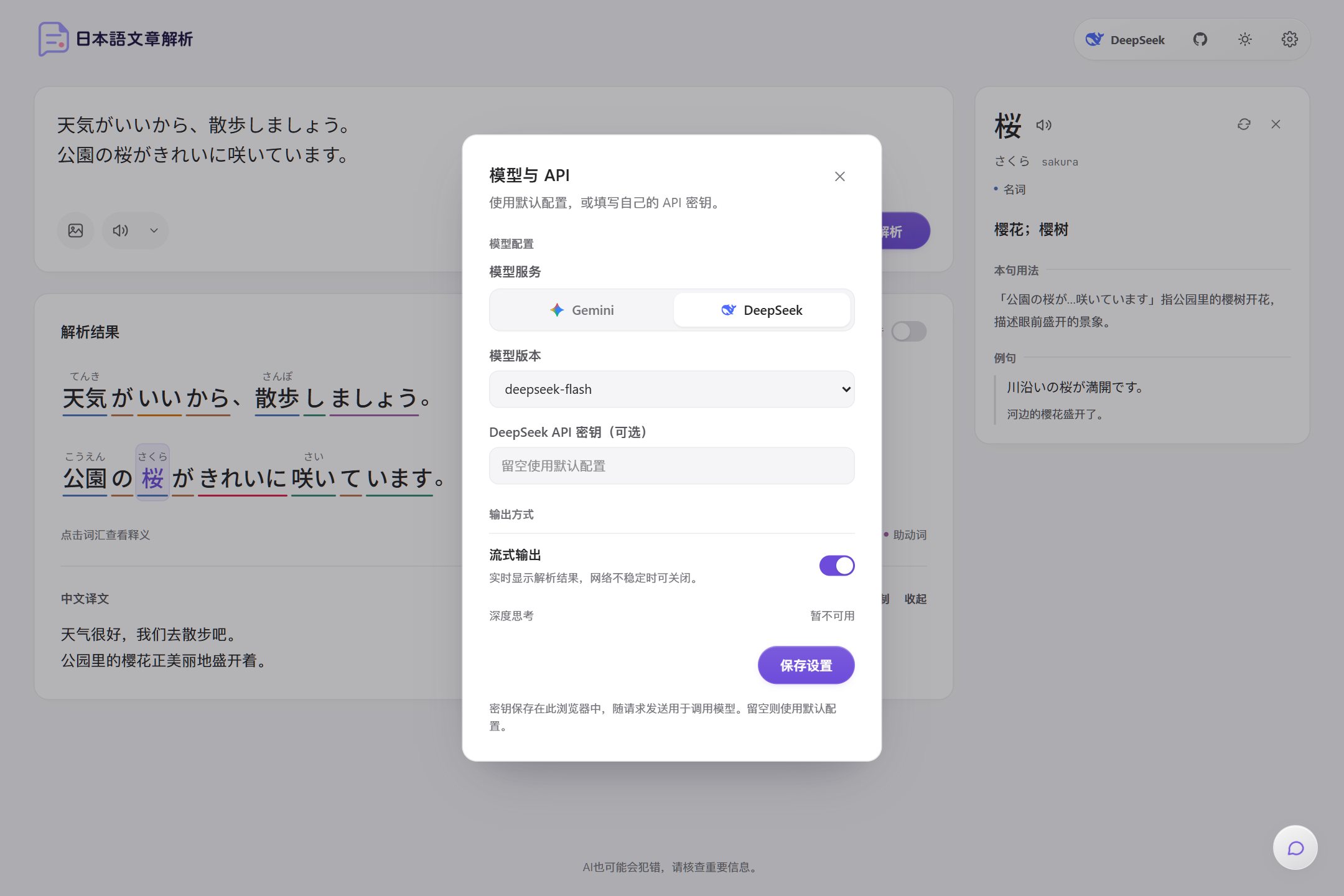
Click the gear icon to open Settings. The Model & API group contains these options:
After making changes, click Save settings. The changes take effect when the page shows “Settings saved”. The current provider appears at the far left of the toolbar.
The selected AI provider and model version are used for sentence analysis, translation, word details, image recognition, and the AI Japanese Assistant.
Gemini and DeepSeek keys are stored separately. When you switch providers, the input box shows the key for that provider.
How your own key is used
- The key is stored in the current browser’s local storage and isn’t synced to other devices.
- When the app calls a model, the key is sent with the request to the app server, which forwards it to the model provider. The server doesn’t store it.
- If you entered a key, the app uses your key first. If you left it blank, the app uses the server-configured key.
Output
Interface language
Click the language button in the toolbar to choose from:- 简体中文 (default)
- 繁體中文
- English
- 한국어
Theme
Click the theme button in the toolbar to switch between these modes:- Light mode
- Dark mode
- System
Where settings are stored
All of the following settings are stored in the current browser’s local storage. Clearing your browser data restores the defaults:- AI provider, model version, and the API key for each provider
- The streaming output toggle
- Interface language and theme
- The speech engine, voice, speed, and speaking style for text-to-speech
- Recent analyzed texts and today’s sentence of the day